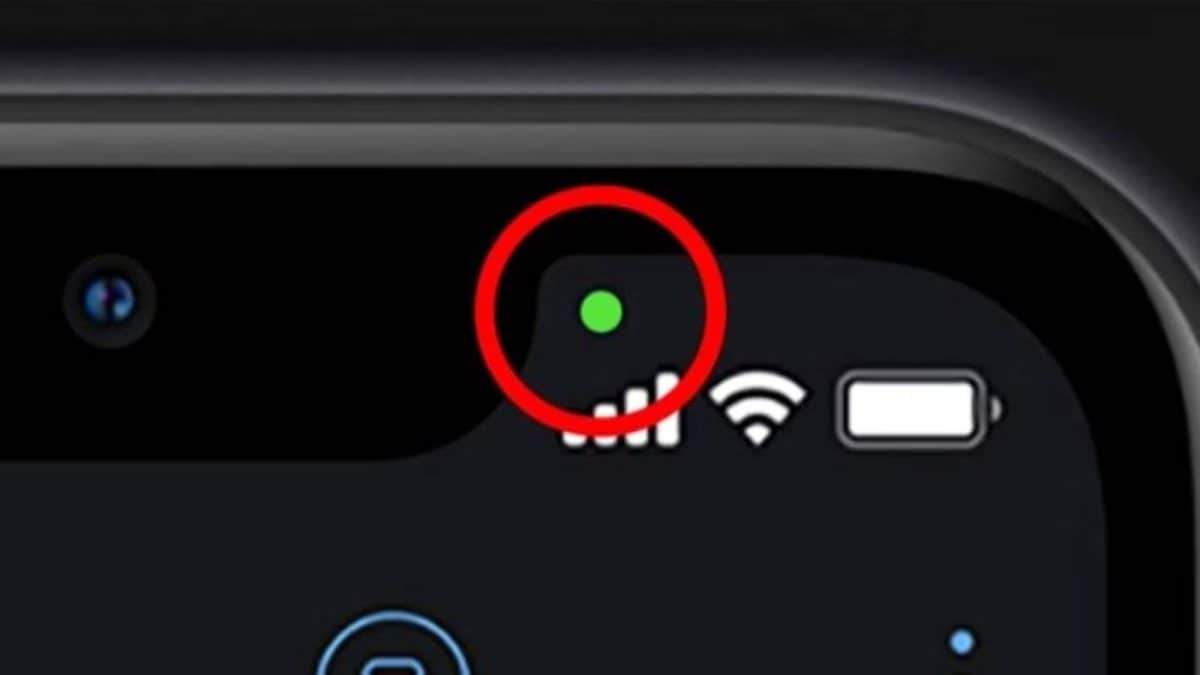


















Have you ever been on a call or recording a video and noticed a tiny green or orange dot appear in the top corner of your iPhone screen? Most people spot these coloured indicators but rarely stop to think about what they mean. These small dots are actually one of Apple’s most important privacy features. They are designed to let you know when an app is using your camera or microphone, giving you a clear signal if your phone is listening or recording. In an age when digital privacy matters more than ever, these simple alerts can help you stay aware of what your apps are doing in real time. (Image: Pinterest)
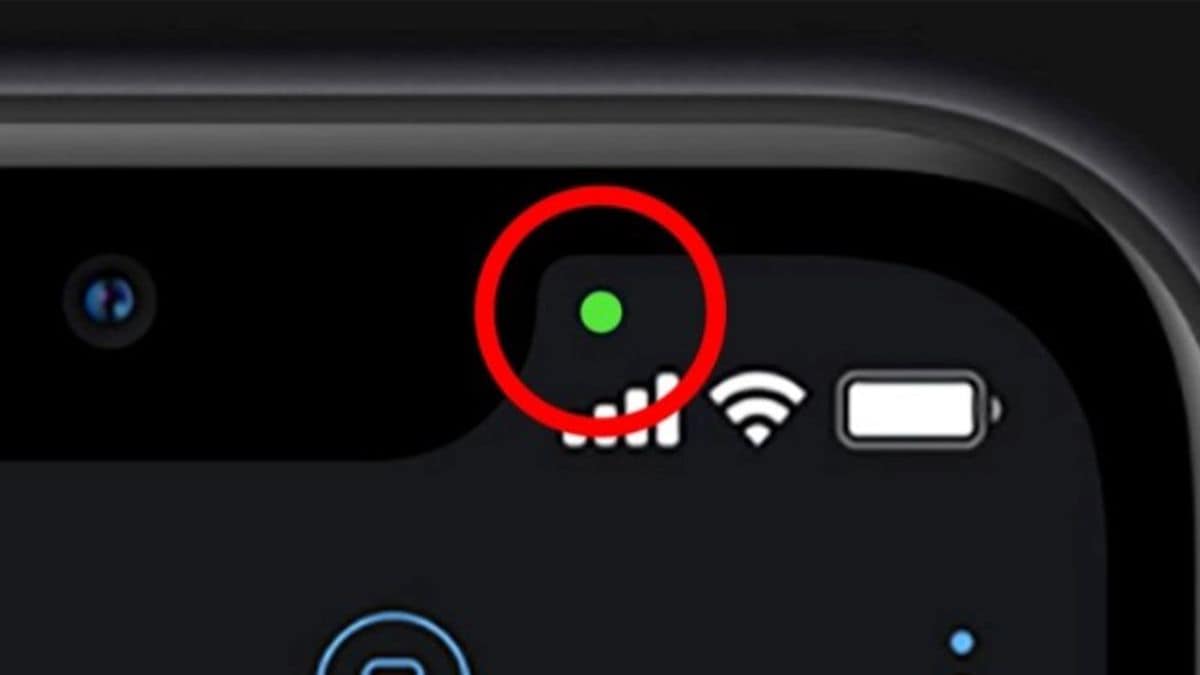
The Green Dot Means Your Camera Is Active
Whenever you see a green dot at the top of your screen, it means an app is currently using your iPhone’s camera. This is perfectly normal when you are taking photos, recording videos, using FaceTime or joining a video meeting. If an app is using both the camera and microphone at the same time, your iPhone will still display only the green dot. (Image: Pinterest)
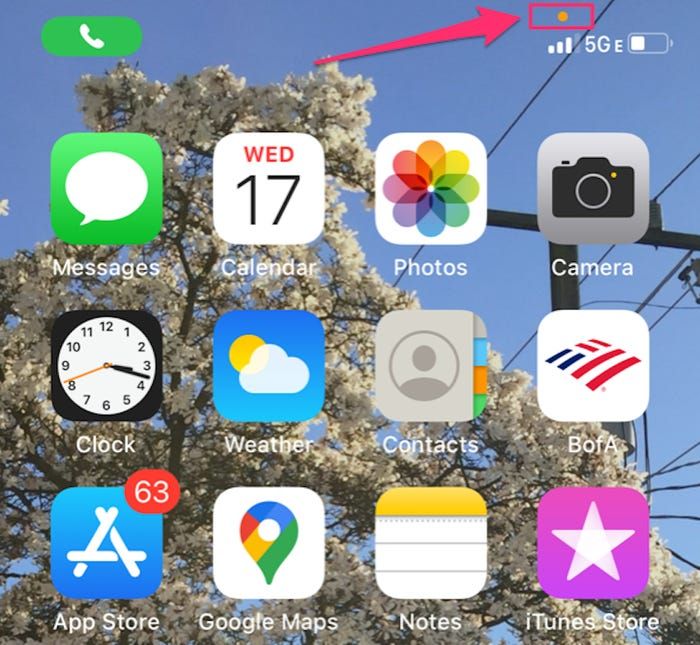
The Orange Dot Means Your Microphone Is In Use
The orange dot appears when an app is accessing your microphone. You may notice it while making a phone call, recording a voice note, talking to Siri or sending a voice message. Think of it as your iPhone’s way of telling you that your device is currently listening. (Image: Pinterest)
Most of the time, these dots appear exactly when you expect them to. But if you notice a green or orange dot when you are not using any app that should need your camera or microphone, it could be a sign that an app is accessing those features in the background. This does not always mean something is wrong, but it is worth checking. You may have granted permission to an app long ago and forgotten about it. (Image: Pinterest)
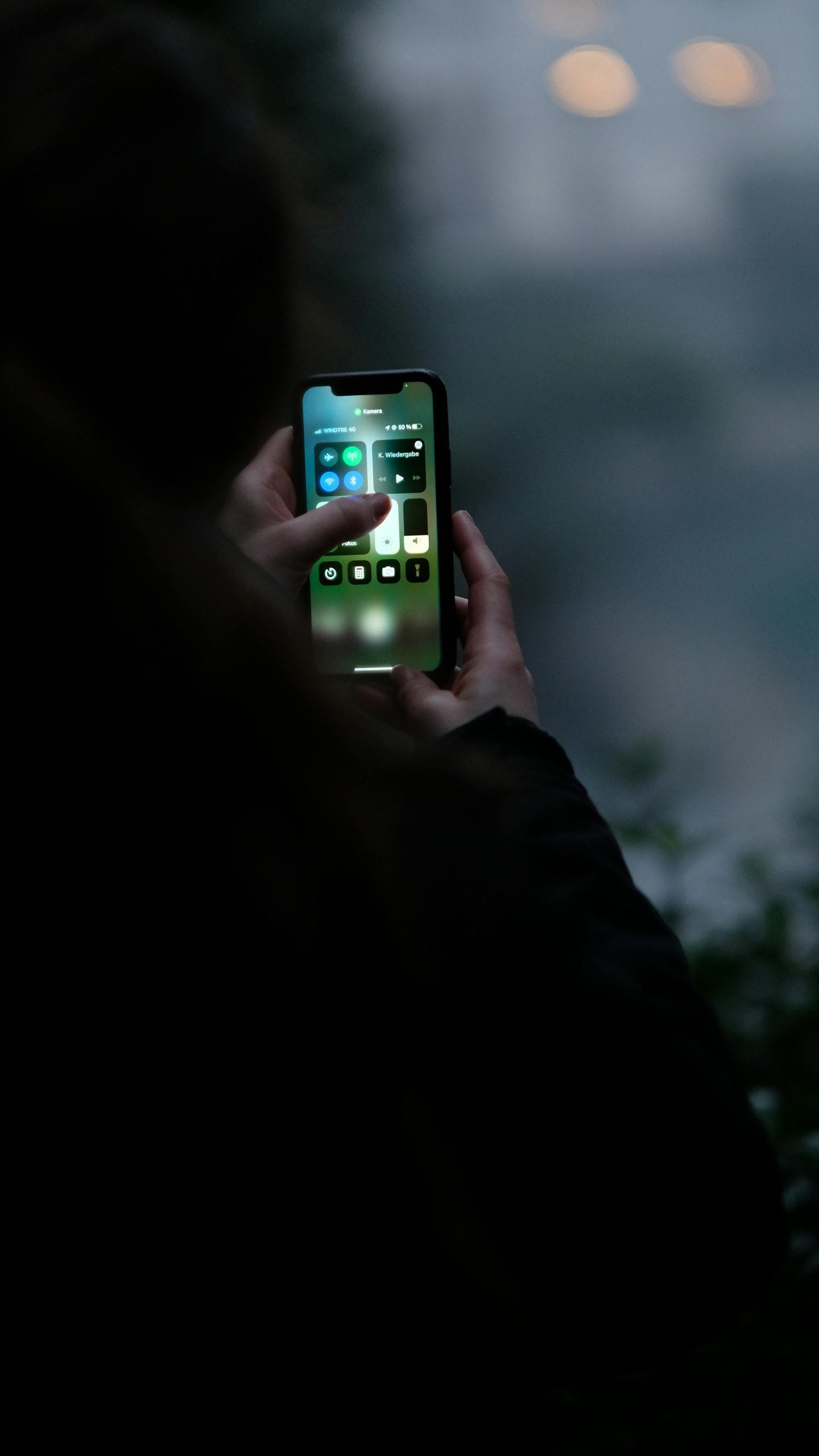
If you are curious about what caused the indicator to appear, simply swipe down from the top-right corner of your iPhone to open the Control Center. At the top of the screen, Apple will display the name of the app that most recently used your camera or microphone. (Image: Pexels)
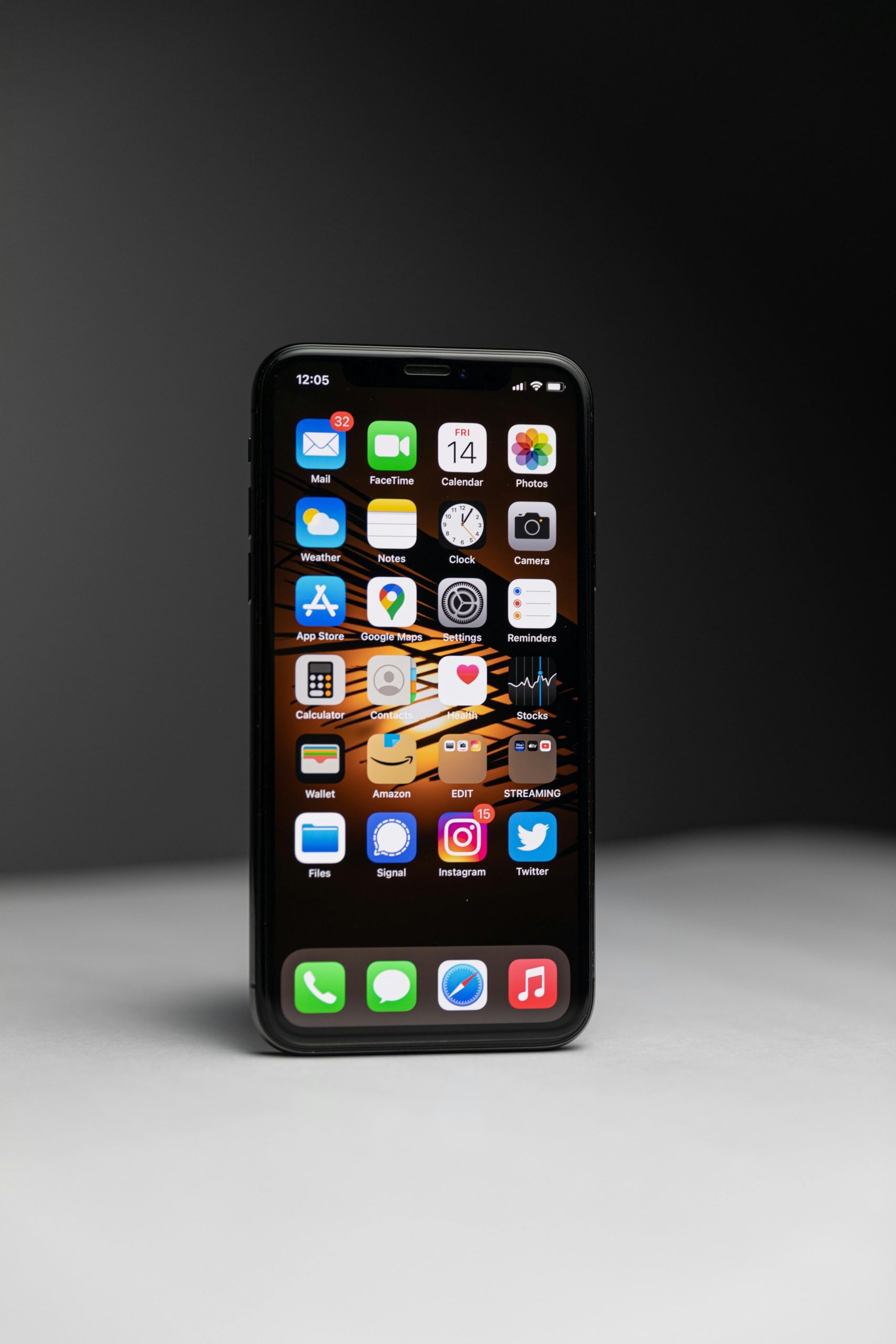
Apple does not allow users to disable the green and orange indicators. They are built into iOS as a permanent privacy safeguard to ensure you always know when sensitive features are being used. (Image: Pexels)
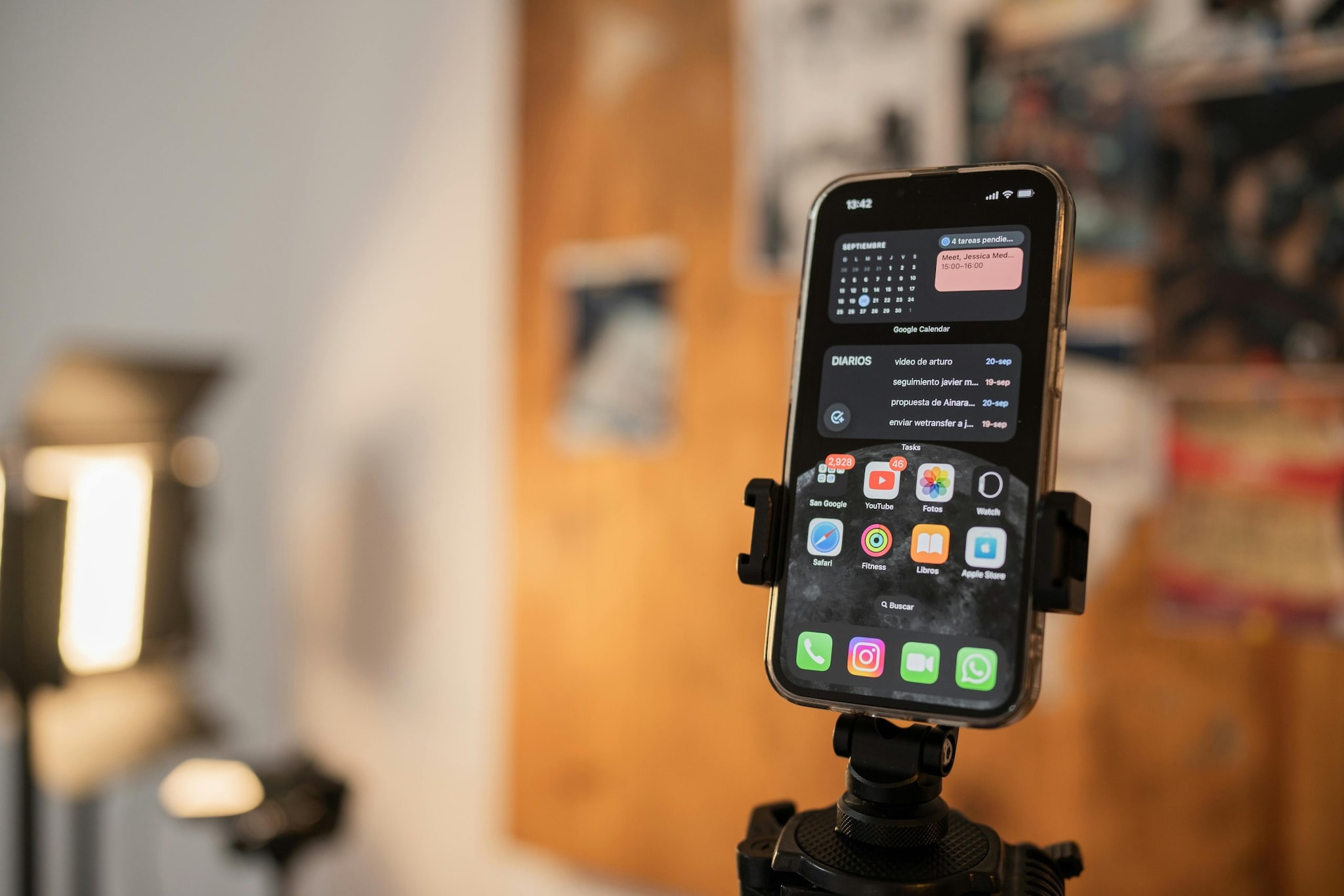
If you suspect an app is accessing your camera or microphone unnecessarily, go to Settings, tap Privacy & Security, and then select Camera or Microphone. From there, you can see which apps have permission and switch off access for any app you do not trust. (Image: Pexels)